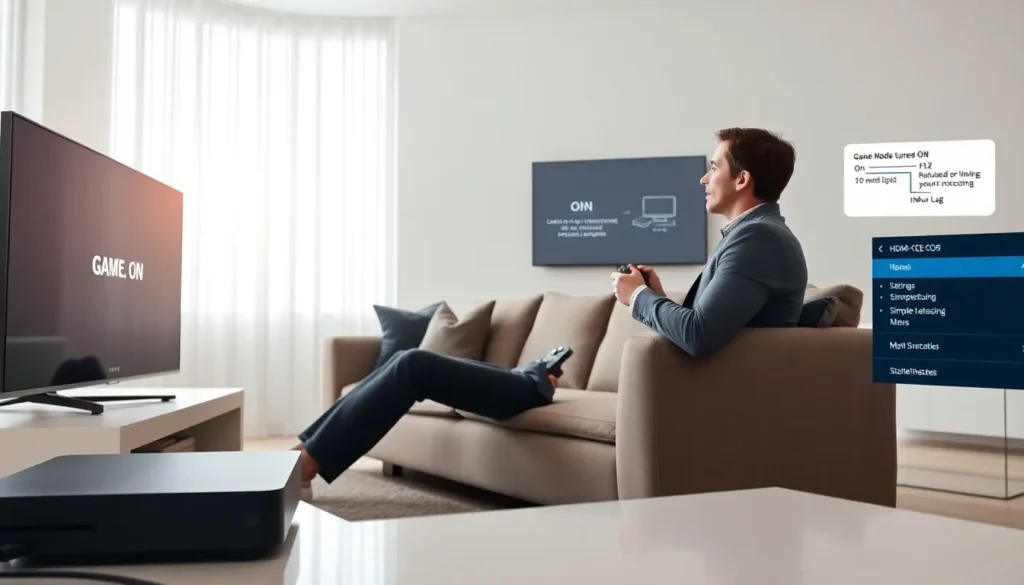
When a display switches to game mode, the user sees lower lag and a simpler image. The phrase game mode turned on by your gaming console appears when the console sends a signal to the TV. The TV then changes processing and turns off extra image processing. The change helps games feel faster and more responsive. This article explains why consoles trigger game mode, what benefits appear, how to control it, and how to fix common problems.
Key Takeaways
- The phrase “game mode turned on by your gaming console” appears because modern consoles send an HDMI auto-mode/CEC signal that instructs the TV to switch to low-latency processing.
- Enabling game mode reduces input lag and makes controls feel faster by skipping extra image post-processing.
- Game mode turned on by your gaming console may change HDR handling, brightness, color, or motion processing, so weigh responsiveness against image quality.
- You can control or disable auto game mode by changing TV settings or input labels, or by turning off the console’s auto-detect/auto-game mode in its video output menu.
- Troubleshoot erratic switching by updating TV and console firmware, checking HDMI cables, disabling HDMI-CEC, or using an HDMI switch/manual input to force a stable mode.
Why Consoles Automatically Trigger Game Mode
Many modern consoles send signals that cause the TV to switch modes. The console sends a message over HDMI. The TV reads that message and then changes to game mode.
HDMI Signals, CEC, And Auto Mode Protocols
HDMI carries both video and control information. The console uses HDMI-CEC or other auto-mode flags to tell the TV to switch. The TV reads the flag and acts on it. The TV then reduces post-processing to lower input lag.
Console Settings That Enable Auto Game Mode
Consoles include settings for video output. The user can enable auto-detect or auto game mode in those menus. When the user enables auto-detect, the console sends the auto-mode signal on every connection. The TV then switches if it supports the feature.
Benefits Of Game Mode For Gameplay
Game mode changes processing to favor latency over image enhancements. Players then see faster input response and fewer delays.
Reduced Input Lag And Improved Responsiveness
Game mode turned on by your gaming console gives lower input lag. The TV skips extra image steps. The controller input then maps more directly to the screen. Players feel the difference in fast action and tight timing.
Picture, HDR, And Frame-Rate Tradeoffs To Watch
Game mode turned on by your gaming console can reduce motion smoothing and noise reduction. The TV may also change HDR handling or tone mapping. The user may see different brightness and color when the TV switches. The console may also change frame-rate behavior when it detects a game. The user then must weigh responsiveness against image processing.
How To Control Or Disable Auto Game Mode
A user can control auto game mode from both the TV and the console. The user can also use workarounds when the display lacks auto-mode features.
Adjusting TV/Monitor Settings And Input Labels
The TV often gives an option to turn off auto-mode. The user can open the TV menu and disable HDMI auto-switch or auto-game mode. The user can also change the input label to trick the TV. The user sets the input to “PC” or a non-game label to stop auto-switch. The user then keeps the desired image processing.
Changing Console Output Settings (Resolution, HDR, VRR)
The console gives options for resolution, HDR, and variable refresh rate. The user can turn off automatic HDR or set a fixed resolution. The user can also disable the console’s auto-detect for the display. The user then prevents the console from sending the auto-mode flag. The TV then remains in the chosen mode.
Workarounds When Your Display Lacks Auto-Mode Features
If the TV lacks auto-mode options, the user can use an HDMI switch with manual switching. The user can also use a different input that does not auto-switch. The user can keep a small overlay or input label to remind them to change the TV mode manually. These steps let the user control image processing when the display cannot.
Troubleshooting Common Auto Game Mode Problems
Auto game mode can cause several common issues. The user can test and fix these issues with simple steps.
TV Switching Back And Forth Between Modes
The TV may switch between game and standard modes when it detects different signals. The user should check HDMI cables and active sources. The user should set the console to a single output mode. The user should disable any HDMI-CEC features that cause the switch. The user should also update firmware on both the TV and the console.
Color, Brightness, Or HDR Issues After Auto-Switch
The TV can change color and brightness when it enters game mode. The user should compare settings in both modes. The user should calibrate the TV for game mode if the TV allows it. The user can set a fixed HDR behavior on the console to avoid sudden shifts. The user can also try toggling HDR off and on to force a re-sync.
When To Update Firmware Or Seek Manufacturer Support
If the TV continues to misbehave, an update may fix the issue. The user should check both the TV and console for updates. The user should apply updates and then retest auto game mode. If the problem persists, the user should contact the TV maker or console maker for support. The manufacturer can confirm known issues and provide specific steps or repairs.